---
title: Tag Equipment
description: This tool allows you to create annotation tags for Specialty Equipment families. The tags are can be placed on the front or back of the family depending on the orientation of the family and the Tag Front/Tag Back buttons.
---
[Skip to content](https://support.kitchautomation.com/migration/knowledge/tagequipment#main-content)
English
Show submenu for translations
![Block K\_Large-1.png\]](https://support.kitchautomation.com/hs-fs/hubfs/Block%20K_Large-1.png?height=40&name=Block%20K_Large-1.png)
- [Default HubSpot Blog](https://academy.kitchautomation.com/how-to)
Open main navigation
Close main navigation
- [Default HubSpot Blog](https://academy.kitchautomation.com/how-to)
- English
Show submenu for translations
- Contact us
Contact us
Have a question? Search our Knowledge Base...
- There are no suggestions because the search field is empty.
1. [Kitchautomation Knowledge Base](https://support.kitchautomation.com/migration/knowledge?hsLang=en)
2. [User Manuals](https://support.kitchautomation.com/migration/knowledge/user-manuals?hsLang=en)
# Tag Equipment
## This tool allows you to create annotation tags for Specialty Equipment families. The tags are can be placed on the front or back of the family depending on the orientation of the family and the Tag Front/Tag Back buttons.
### Table of Contents
1. [Getting Started Video](https://support.kitchautomation.com/migration/knowledge/tagequipment#getting-started-video)
2. [Setting up Equipment Tags](https://support.kitchautomation.com/migration/knowledge/tagequipment#setting-up-equipment-tags)
3. [Using the Tag Equipment tool](https://support.kitchautomation.com/migration/knowledge/tagequipment#using-the-tag-equipment-tool)
### 1. Getting Started Video
### 2. Setting Up Equipment Tags
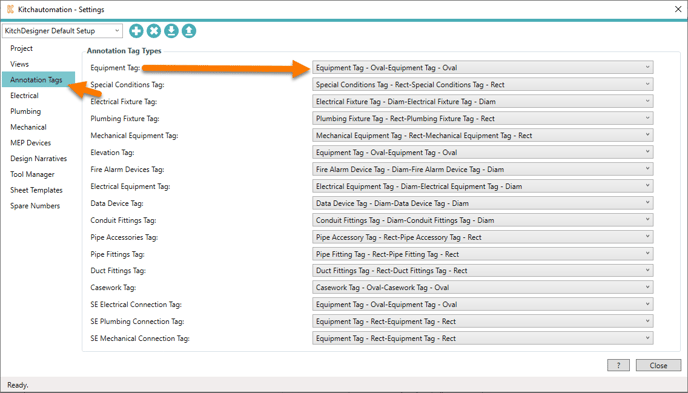
The Tag Equipment tool requires a Specialty Equipment annotation tag family to be specified in Settings.

Click on the Settings button.
Once the Settings window opens go to the Annotation Tags tab.
Select an Equipment Tag family from the dropdown. This dropdown will show all Specialty Equipment annotation tag families and all Multi-Category annotation tag families in the current model.
When using a Multi-Category annotation tag family, the Tag Equipment tool will only tag the Specialty Equipment families.
### 3. Using the Tag Equipment tool
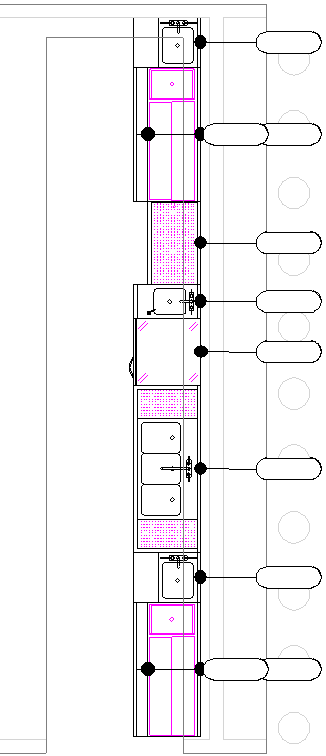
The Tag Equipment tool works by first analyzing the Specialty Equipment family’s orientation to find the front and back.
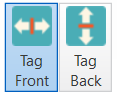
On the far right of the KitchDesigner tool ribbon are the Tag Front and Tag Back toggle buttons.
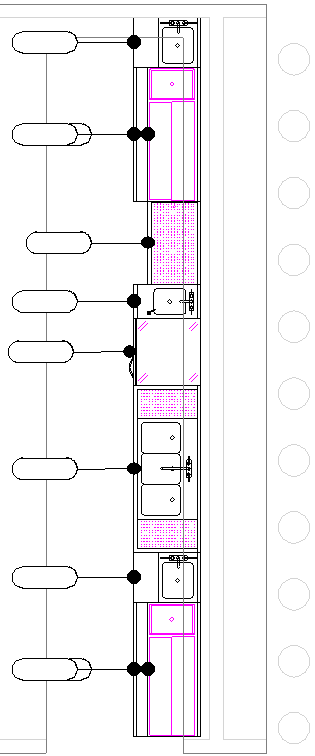
The Tag Equipment tool will place the annotation tags at the front or back of the equipment depending on which button is active, Tag Front or Tag Back.
The Tag Equipment tool will only create annotation tags for the current floor plan view. When you have a floor plan view active, press the Tag Equipment button.
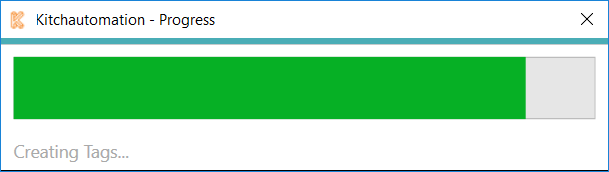
A Progress Bar will pop up to show the completion progress.
#### Tag Front:
#### Tag Back:
****
[Back to Top](https://support.kitchautomation.com/migration/knowledge/tagequipment#table-of-contents)
- [User Manuals](https://support.kitchautomation.com/migration/knowledge/user-manuals?hsLang=en#main-content)
- [KitchCreator](https://support.kitchautomation.com/migration/knowledge/user-manuals?hsLang=en#kitchcreator)
- [Settings](https://support.kitchautomation.com/migration/knowledge/user-manuals?hsLang=en#settings)
- [FAQ](https://support.kitchautomation.com/migration/knowledge/faq?hsLang=en)
- [Revit Tips](https://support.kitchautomation.com/migration/knowledge/revit-tips?hsLang=en)
- [Default HubSpot Blog](https://academy.kitchautomation.com/how-to)
[](https://support.kitchautomation.com/knowledge?hsLang=en)
Kitchautomation - Design More | Draft Less
Copyright © 2026, Kitchautomation, LLC