---
title: Link|Align Background
description: "This tool links a Revit file into the current project and then allows you to align your foodservice levels to corresponding levels in the linked model. \nIt can also copy levels from the linked model into the foodservice model."
---
[Skip to content](https://support.kitchautomation.com/migration/knowledge/linkalignbackground#main-content)
English
Show submenu for translations
![Block K\_Large-1.png\]](https://support.kitchautomation.com/hs-fs/hubfs/Block%20K_Large-1.png?height=40&name=Block%20K_Large-1.png)
- [Default HubSpot Blog](https://academy.kitchautomation.com/how-to)
Open main navigation
Close main navigation
- [Default HubSpot Blog](https://academy.kitchautomation.com/how-to)
- English
Show submenu for translations
- Contact us
Contact us
Have a question? Search our Knowledge Base...
- There are no suggestions because the search field is empty.
1. [Kitchautomation Knowledge Base](https://support.kitchautomation.com/migration/knowledge?hsLang=en)
2. [User Manuals](https://support.kitchautomation.com/migration/knowledge/user-manuals?hsLang=en)
# Link|Align Background
## This tool links a Revit file into the current project and then allows you to align your foodservice levels to corresponding levels in the linked model. It can also copy levels from the linked model into the foodservice model.
### Table of Contents
1. [Getting Started](https://support.kitchautomation.com/migration/knowledge/linkalignbackground#getting-started-video)
2. [Using the Link|Align Background tool](https://support.kitchautomation.com/migration/knowledge/linkalignbackground#using-the-link-align-backrgound-tool)
### 1. Getting Started Video
### 2. Using the Link|Align Background tool

Click on the Link|Align Background button.
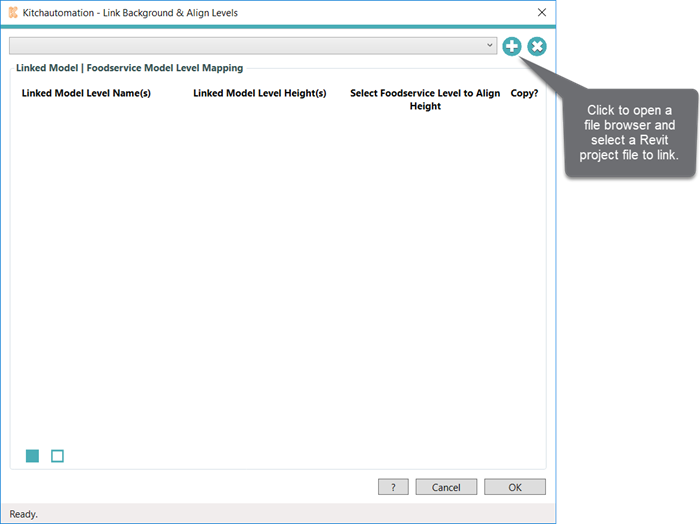
To begin, click on the + button in the top right corner to open a File Browser.
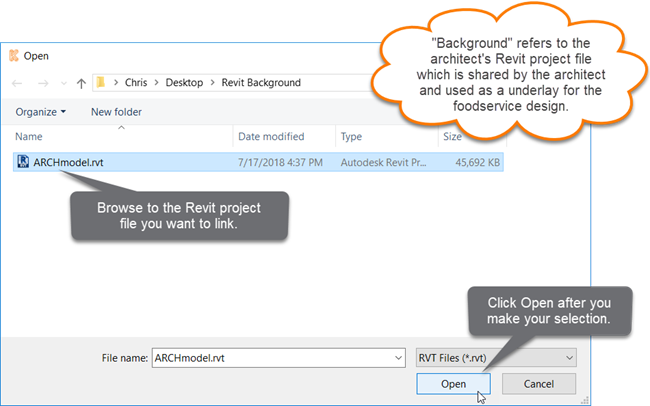
Select a Revit Project File to link into your current project then press Open.
After linking, the levels and their respective heights will be displayed next to a dropdown and a checkbox.
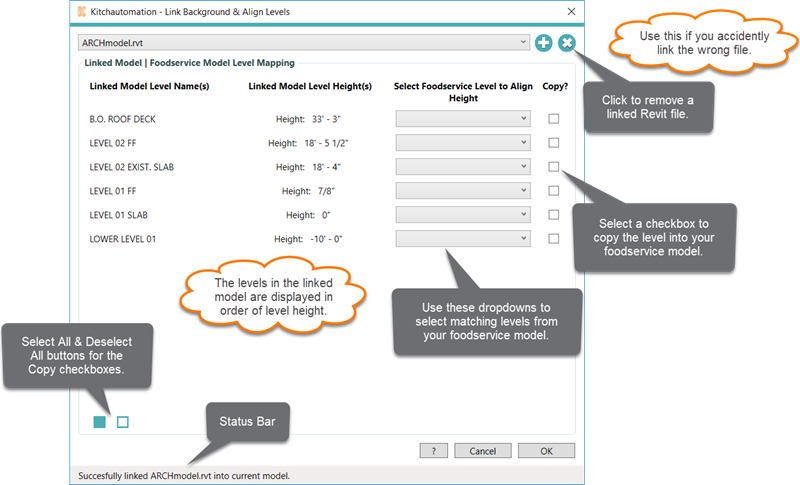
The dropdowns are used to match your foodservice levels to the levels in the linked model.
The checkboxes are used to specify levels in the linked model that you want to copy into the foodservice model.
It is not uncommon for there to be extra levels in the linked model that are not needed for matching or for copying.
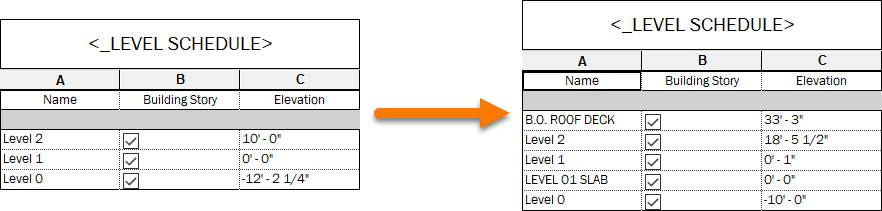
In this example, the foodservice model Level 0 is being matched to the linked model Lower Level 01. This will result in the height of Level 0 being changed to -10’ - 0”.
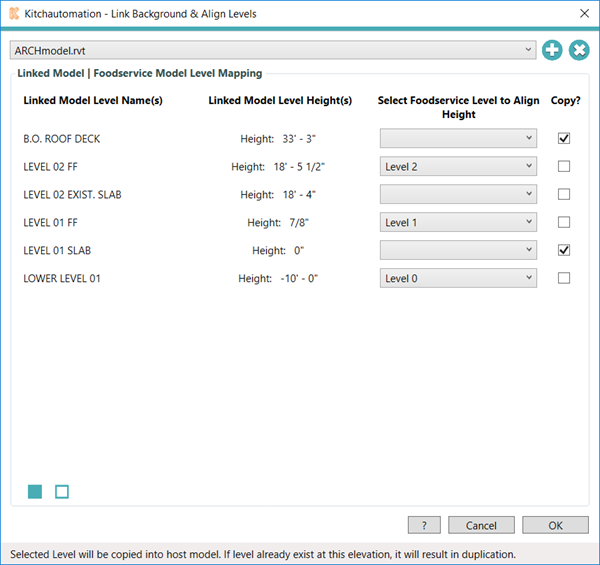
In this example I am also copying (2) levels from the linked model, LEVEL 01 SLAB & B.O. ROOF DECK.
Press OK once you are finished.
[Back to Top](https://support.kitchautomation.com/migration/knowledge/linkalignbackground#table-of-contents)
- [User Manuals](https://support.kitchautomation.com/migration/knowledge/user-manuals?hsLang=en#main-content)
- [KitchCreator](https://support.kitchautomation.com/migration/knowledge/user-manuals?hsLang=en#kitchcreator)
- [Settings](https://support.kitchautomation.com/migration/knowledge/user-manuals?hsLang=en#settings)
- [FAQ](https://support.kitchautomation.com/migration/knowledge/faq?hsLang=en)
- [Revit Tips](https://support.kitchautomation.com/migration/knowledge/revit-tips?hsLang=en)
- [Default HubSpot Blog](https://academy.kitchautomation.com/how-to)
[](https://support.kitchautomation.com/knowledge?hsLang=en)
Kitchautomation - Design More | Draft Less
Copyright © 2026, Kitchautomation, LLC